
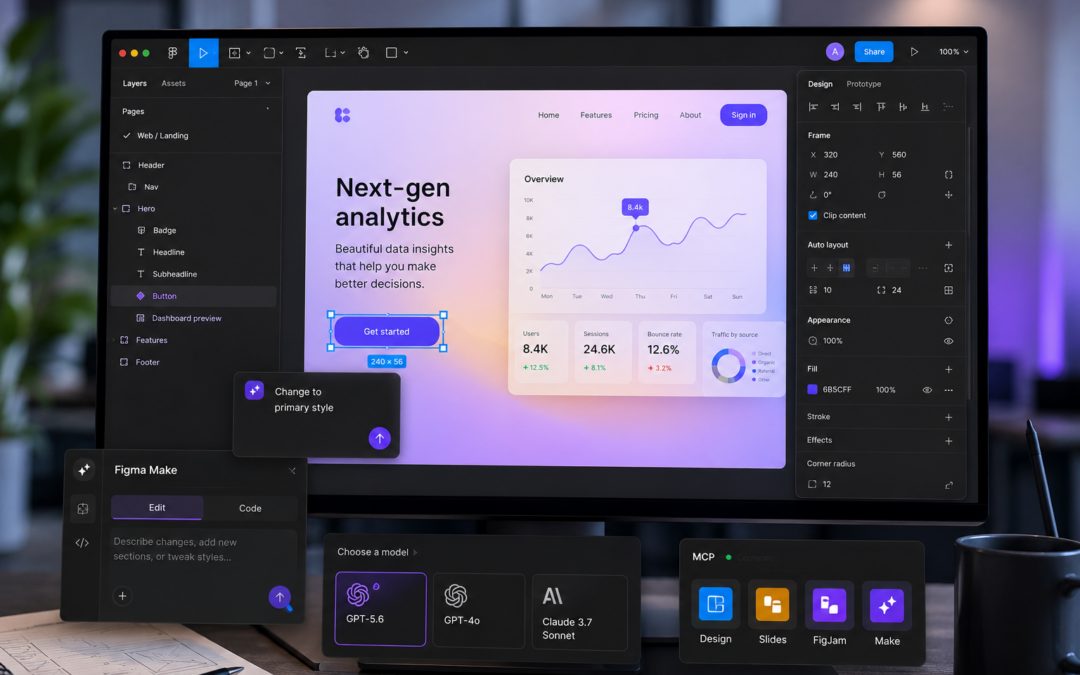
Figma used its Config 2026 keynote to unveil three headline features — Motion, Shaders, and Code Layers — and if you build in Figma every day, you’ve probably already heard the buzz. But the announcements that follow a big keynote often matter just as much as the keynote itself. This month, Figma quietly shipped a set of smaller, practical updates aimed squarely at the parts of the job that eat up the most time: refining a build, organizing files, presenting to a client, and jumping between tools without losing your train of thought.
At Zigma, we live inside Figma from the first sketch of a mockup through the final click-through we walk clients through in a review. So we went through this release the way we’d go through any tool update that touches our workflow — feature by feature, asking what it actually changes for the work we do. Here’s the rundown.
At a Glance
- Visual editing arrives in Figma Make, with a real properties panel and element-level annotation.
- Figma’s MCP server now reaches Slides, FigJam, Figma Make, and the Figma agent.
- GPT-5.6 is now selectable as a model inside Figma Make.
- Projects are being renamed and rebuilt as nestable, color-coded Folders.
- Tab groups bring browser-style tab management to the Figma desktop app.
- Two live webinars are coming up, covering the Figma agent and Figma’s new creative tools.
Figma Make Grows a Properties Panel
Figma Make lets you describe an interface in plain language and get a working build back. Until now, refining that build meant going back to the prompt and hoping the next generation landed closer to what you meant. The new properties panel changes that: once Make has produced a first pass, you can select an element and adjust it directly — spacing, color, sizing — the way you’d nudge a layer in any other Figma file. You can also annotate a specific element to change how it behaves, without having to redescribe the whole screen.
|
WHY IT MATTERS FOR ZIGMA Client mockups almost always need a last round of polish that has nothing to do with the big idea — a button that’s a touch too wide, a card that needs more breathing room. Being able to make that fix visually, in seconds, means we can stay in the review with a client instead of stepping away to re-prompt and re-generate. |
One MCP Server, Four Places to Use It
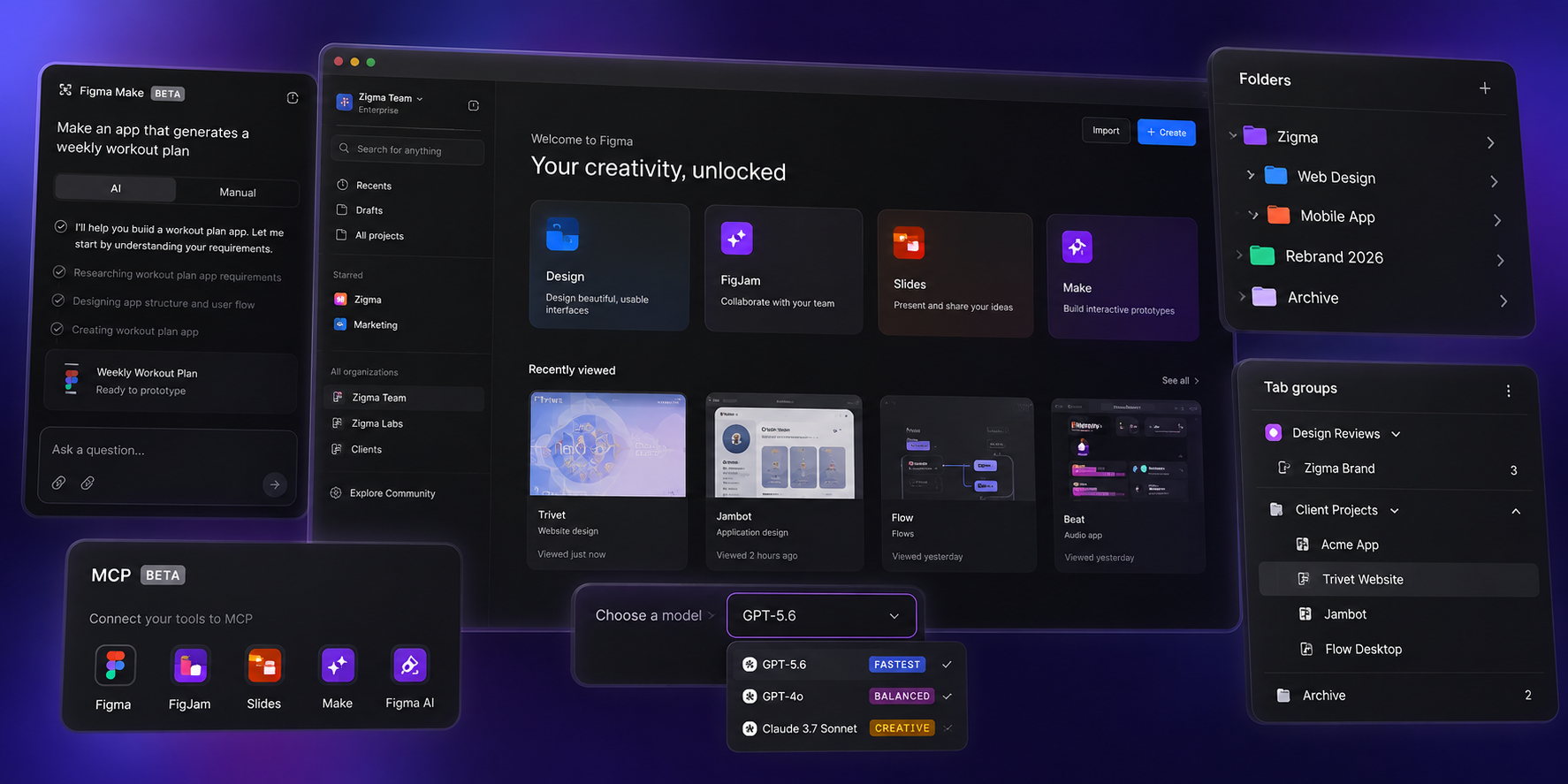
Figma’s MCP (Model Context Protocol) server is the bridge that lets AI tools read and act on your Figma files directly. It launched covering core design files, and this update extends the same server to Figma Slides, FigJam, Figma Make, and Figma’s own agent — so the same AI-assisted workflow you’d use to generate a screen can now generate a slide deck or a FigJam diagram.
|
WHY IT MATTERS FOR ZIGMA A good chunk of our prep for a client kickoff isn’t the design work itself — it’s building the deck and the workshop diagrams that frame it. Having those surfaces plug into the same MCP workflow as our design files means less time spent rebuilding the same information in three different formats. |
GPT-5.6 Joins Figma Make
Figma Make now offers OpenAI’s GPT-5.6 as a model option alongside its existing models. In practice, that means faster generations and outputs that need fewer follow-up prompts to get right.
|
WHY IT MATTERS FOR ZIGMA Speed compounds. A faster, more accurate first pass in Make means more of a client meeting spent discussing the concept, and less spent waiting for the tool to catch up to the conversation. |
Projects Become Folders
What used to be Projects in Figma are becoming Folders — nestable, color-codable, and rolling out over the coming weeks. Instead of a flat list, teams can build a structure that actually mirrors how their work is organized.
|
WHY IT MATTERS FOR ZIGMA Agencies juggle a different kind of file structure than a single product team — many clients, each with several workstreams live at once. Nested, color-coded folders let us mirror that structure directly (client, then engagement, then deliverable) instead of forcing it into one flat project list. |
Tab Groups Land on Desktop
The Figma desktop app now supports tab groups — group, expand, and collapse open file tabs, similar to tab grouping in a modern browser.
|
WHY IT MATTERS FOR ZIGMA Anyone who’s shared their screen mid-presentation while hunting for the right file tab will feel this one immediately. Grouping tabs by client or project keeps a live client call looking as organized as the work itself. |
Catching Up on Config 2026
If Motion, Shaders, and Code Layers passed you by, it’s worth setting aside time to catch up — these are the features doing the heavy lifting on Figma’s roadmap this year, and they change what’s realistic to prototype directly inside Figma rather than handing off to engineering early. Figma has published a full recap of everything announced at Config 2026, which is the fastest way to get oriented.
Read the Config 2026 recap on Figma’s blog →
Two Webinars Worth Your Calendar
Getting Started with the Figma Agent
August 6 — Figma’s team walks through setup, access controls, prompting, connectors, skills, and plugins, plus best practices for putting the Figma agent to work inside real files.
New Tools, More Expression
August 20 — A session on bringing Figma Motion, Figma Weave, and shaders into a working creative process, aimed at making more expressive, on-brand output without leaving Figma.
The Takeaway
None of these updates are as headline-grabbing as Motion or Shaders, and that’s rather the point. Visual editing in Make, MCP support across Slides and FigJam, a faster model option, real folders, and tab groups are all updates to the parts of the job that happen between the big creative decisions — organizing the work, refining it, and presenting it well. For a studio that spends its days moving between mockups and client rooms, that’s exactly where a tool update earns its keep.