


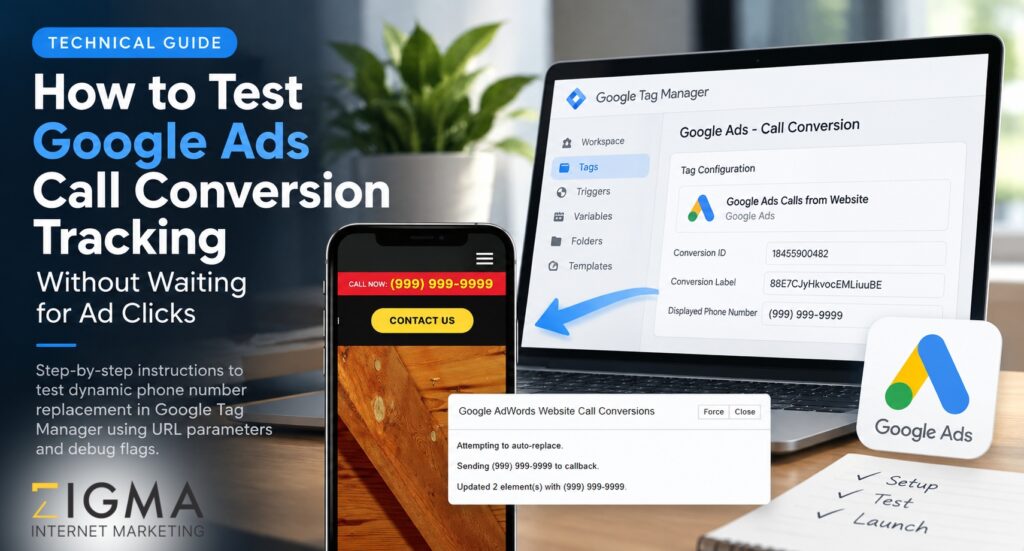
A practical GTM test for Google Ads dynamic phone-number replacement, including what the #google-wcc-debug tool confirms — and what it does not.
| Target URL | https://zigma.ca/blog/test-google-ads-call-conversion-tracking/ |
| Meta Title | How to Test Google Ads Website Call Tracking | Zigma |
| Meta Description | Learn how to manually test Google Ads website call conversion tracking using GTM and #google-wcc-debug without spending budget on live ad clicks. |
| Primary Keyword | google ads call tracking test |
| Supporting Keywords | test google ads call conversion tracking; google-wcc-debug; Google Ads calls from website; GTM call tracking |
| Recommended Schema | Article / BlogPosting. Do not rely on HowTo schema for a Google How-to rich result; that result type is deprecated. |
How to Test Google Ads Call Conversion Tracking Without Waiting for a Paid Click
Google Ads website call conversion tracking can be difficult to verify because the phone number on your website may only change dynamically after a visitor arrives through a Google Ads click.
Fortunately, you can test whether the dynamic number replacement is working without having to spend money on a live ad click.
This guide explains how to use Google Tag Manager (GTM) and the #google-wcc-debug URL parameter to test Google Ads website call tracking.
|
Quick answer Open a published page that contains the tracked phone number, add #google-wcc-debug to the end of the URL, and load the page. When the Google AdWords Website Call Conversions panel appears, use Force if the number does not swap automatically. A successful forced test usually replaces the tracked number with a test value such as (999) 999-9999. |
|
Important: this is a replacement test, not a full attribution test The forced swap confirms that the call-tracking code loaded and found the phone number on the page. It does not by itself prove that a real call will be attributed to the correct Google Ads click, satisfy your call-duration threshold, or appear as a conversion in reporting. |
Before You Test: Confirm the Google Ads Call Tracking Setup
Before using the debug method, make sure the basic call conversion tracking setup is already in place.
- A Google Ads conversion action for calls to a phone number shown on your website.
- The correct Google Ads Conversion ID and Conversion Label.
- A published Google Tag Manager container or Google tag on the site.
- The business phone number is visible as text on the page you are testing.
- Auto-tagging is enabled for normal Google Ads attribution, and your landing-page redirects do not strip click identifiers.
Conversion Linker: when you need it
If your GTM container already loads a Google tag on every page, Google’s current Tag Manager documentation says a separate Conversion Linker tag is not required.
If it does not, use a Conversion Linker on all pages where an ad visitor can land so Google Ads click information can be stored correctly.
Step 1: Configure the Google Ads Calls from Website Tag in GTM
In Google Tag Manager, create or review the native website call conversion tag:
- Open your GTM workspace and go to Tags > New.
- Choose Google Ads Calls from Website Conversion as the tag type.
- Enter the phone number you want Google to replace, matching the number displayed on the website.
- Enter the Conversion ID and Conversion Label from the Google Ads conversion action.
- Set the tag to fire on the pages where the tracked phone number appears. All Pages is common when the same business number appears site-wide.
- Preview the container, then Submit and Publish when the setup is correct.
|
Phone-number formatting matters Google tells advertisers to enter the phone number as it is displayed on the website. If the site shows 647-556-6071 but the tag is configured for a different number or format, the replacement can fail. Google also warns that the standard GTM website-call tag can have problems with international number formats; using the national format without a leading plus sign is safer. |
Step 2: Open the Page in Google’s Website Call Conversion Debug Mode
Open the page you want to test in an Incognito or Private window. Then append this fragment to the URL:
You do not need to add a fake GCLID just to force the phone-number replacement. The debug fragment is enough for this specific QA check. A made-up click ID should not be treated as proof that real Google Ads attribution is working.
When the page loads, a small panel titled “Google AdWords Website Call Conversions” should appear. The panel attempts to auto-replace the configured number. If the automatic request does not produce a test number, click Force.

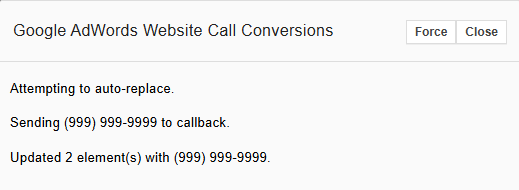
What “Updated 2 element(s)” means
The debug panel counts matching page elements that were replaced. Seeing two updates is normal if the same phone number appears in more than one place — for example, in a top call bar and another phone link elsewhere on the page.
Step 3: Confirm the Number Actually Changes on the Page
After you click Force, inspect the visible phone number on the page. In a successful debug test, Google replaces the business number with a test number. The screenshot below shows the call bar changing to (999) 999-9999.


|
This is the key pass/fail check If the debug panel says it updated an element and the visible number changes, the replacement logic is working on that page. If the panel appears but the number does not change, focus on the configured phone number, page markup, firing conditions, and script timing. |
|
Need a second set of eyes on your Google Ads tracking? Zigma can audit Google Ads, Google Tag Manager, GA4 and website call tracking before you scale campaign spend. We check what fires, what gets replaced, what is attributed and what your reporting is actually counting.
|
Step 4: Troubleshoot a Phone Number That Will Not Swap
1. The displayed number does not match the configured number
Start here. Compare the number entered in the GTM tag with the number rendered on the page. Check the actual DOM in browser developer tools, not only the WordPress editor or page-builder field.
|
Example page markup: |
2. The GTM container is still a draft
GTM Preview mode can make an unpublished setup appear to work while a normal browser visit still uses the older container. After QA, publish the container and repeat the test in a fresh private window.
3. The tag does not fire on the page being tested
Use Google Tag Assistant or GTM Preview to confirm that the Google Ads Calls from Website tag loads on the page where the phone number appears. If the number is site-wide, review whether the tag should fire on all pages rather than only a narrow page trigger.
4. The phone number is injected after the call-tracking script runs
Some themes, page builders, single-page applications and JavaScript components render contact details after the initial page load. If the number is added late, the replacement script may not see it at the expected time. Confirm what the browser DOM contains when the tag fires.
5. International formatting is causing a mismatch
Google notes a limitation with international number formatting in the standard GTM website-call conversion tag. If you are using a +1 format and replacement is unreliable, test the national display format instead and keep the displayed website number consistent with the tag.
6. Consent, browser restrictions or extensions are blocking measurement
Consent configuration, privacy settings, content-security policies and blocking extensions can affect tag behaviour. Test in a clean private window and review the browser console and Tag Assistant if the tag or Google resources are not loading.
Step 5: Verify the Setup Beyond the Forced Number Swap
Once the forced replacement works, do a second round of QA before treating the conversion action as production-ready.
- Use Google Tag Assistant to confirm the relevant Google tag and call conversion tag load correctly.
- Check that Google Ads auto-tagging is enabled and that landing-page redirects preserve the GCLID or other Google click identifiers.
- Review the conversion action’s call-duration threshold. A short test call may not count as a conversion if it ends before the configured minimum.
- Check the Google Ads conversion status after testing. A new action can remain Unverified or Inactive until Google records a successful test event or conversion.
- Test the real customer path on the devices and templates that matter most, including pages where the phone number appears in the header, mobile menu or sticky call bar.
|
Do not use the debug number as a production test call The (999) 999-9999-style number is a debug replacement used to confirm the page swap. It is not the same as validating a live Google Forwarding Number and an attributed phone-call conversion from a genuine ad interaction. |
Do You Still Need HowTo Schema for This Article?
No — not for a Google How-to rich result. Google deprecated How-to rich results in 2023 and removed support for that search appearance. The article can still use clear step-by-step headings for readers, but the publishing template should rely on standard Article or BlogPosting structured data instead of adding HowTo markup solely for Google rich-result eligibility.
If your WordPress SEO plugin already outputs Article or BlogPosting schema, avoid adding duplicate schema manually unless there is a specific implementation reason.
Frequently Asked Questions
Can I test Google Ads website call tracking without clicking my own ad?
Yes, for the phone-number replacement logic. Add #google-wcc-debug to a published page and use the Force button if needed. A real or valid test interaction is still required to validate end-to-end attribution.
What does the Force button do in the Google call conversion debug panel?
It forces the website call conversion script to replace the configured phone number with a test number. This is useful when the automatic replacement does not occur during manual QA.
Why does the panel say it updated two elements?
The same tracked phone number is present in two matching page elements. This can happen when a site has the number in a header call bar and another link or duplicate responsive element.
Why does Google Ads still show the call conversion as Inactive?
A new or recently changed conversion action may not become Active until Google receives a successful test event or an actual conversion. Also confirm that the tag is published and the Conversion ID and Label are correct.
Should I add ?gclid=12345 to test the number swap?
It is not necessary for the forced replacement test. A fabricated GCLID does not validate real Google Ads attribution. Use #google-wcc-debug for the replacement check, then verify the full tracking path separately.
|
Make sure your campaigns are optimizing against real leads Bad conversion data can make a good campaign look weak — or make a weak campaign look better than it is. Zigma Internet Marketing helps businesses configure and troubleshoot Google Ads, GTM, GA4, call tracking and conversion reporting so campaign decisions are based on cleaner lead data.
|
📞 Phone: (647) 556-6071 ✉ Email: info@zigma.ca